How to Use Windows Password Recovery Tool Pro
How to remove/reset Windows local account password by CD/DVD/USB?
Below are the steps to reset Windows local account password by using Windows Password Recovery Tool Professional.
Step 1 . Download and install Windows Password Recovery Tool Professional :
1 . Download a free demo version of Windows Password Recovery Tool Professional (The free demo version lists all the user names, but doesn't reset the passwords. )
Free Trial Windows Password Recovery Tool:
| Size: 31.1MB | Only $29.95 |
 |
 |
2 . Double-click on the downloaded file to install Windows Password Recovery Tool Professional. You can install it on any PC you have access to, not necessarily on a computer you wish to unlock.
3 . The installation process is quick. Upon successful completion of the installation, an installation successful screen will be displayed! Enable the "Run Windows Password Recovery Tool Professional. " check-box and click the "Finish" button. Windows Password Recovery Tool Professional will be launched automatically.
Step 2 .Burn Windows password recovery Tool Professional to USB Flash Drive:
Windows Password Recovery Tool offers you two options to create a bootable CD/DVD/USB flash drive: Quick Recovery mode with default iOS image file, and Advanced Recovery Wizard with new iOS image file.
Option 1: Create a bootable CD/DVD or a USB flash drive with default ISO image
Use the default ISO image file provided by Windows Password Recovery Tool to burn a bootable CD/DVD or a USB flash drive. If your computer can't read the default ISO image, please refer to the option 2.
1 . Open Windows Password Recovery Tool Professional program
2 . Choose what Windows password reset device to burn :
The Professional Edition supports both CD/DVD and USB flash drive, now we take USB for example.
Insert a USB Flash Drive into a USB port on the computer and specify the USB burning drive from the pull-down list of the USB flash options. Click "Burn" button to start burning an ISO image file to the USB flash drive.
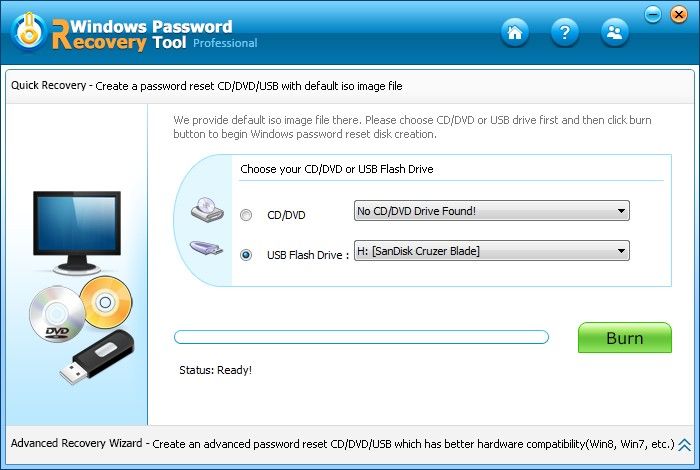
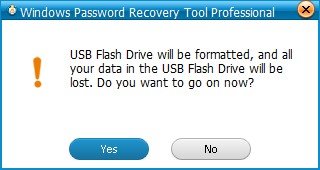
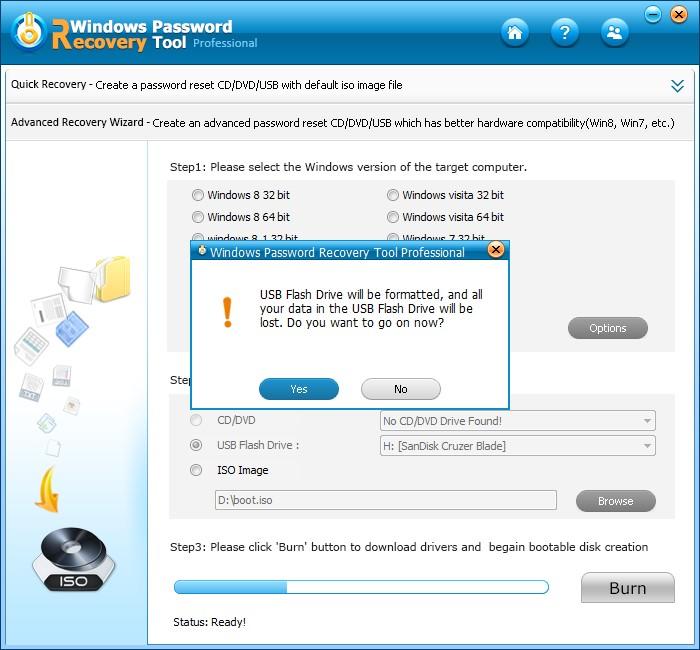
3 . In the pop-up window, select "Yes" to go on burning (All data in this USB flash drive will be erased.)
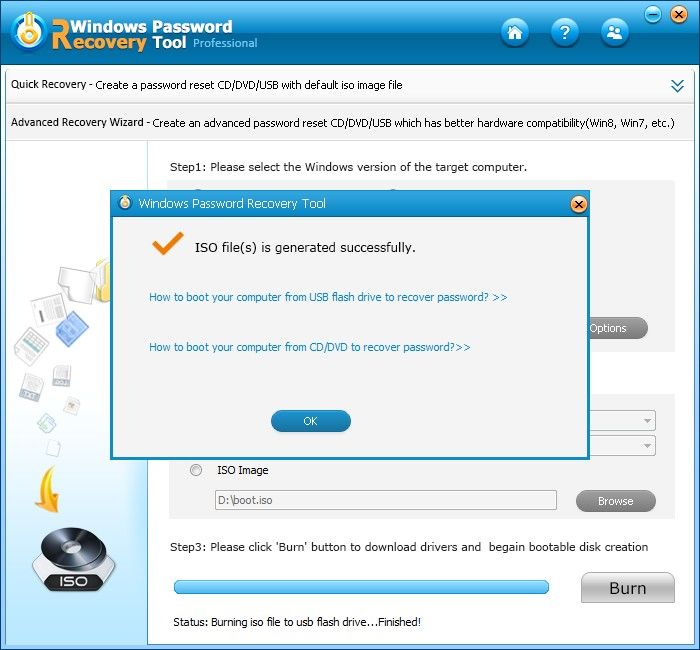
4 . The burning successfully completed :
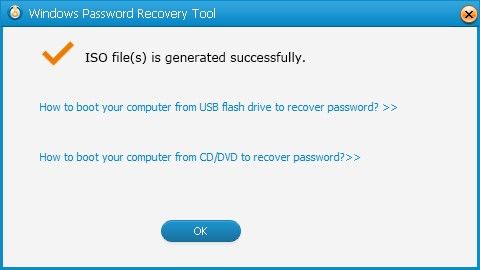
5 . The burning successfully completed. Take out the password recovery bootable USB disk and put it into your locked computer to reset the lost or forgotten password.
Option 2: Create a bootable CD/DVD or a USB flash drive with Advanced Recovery Wizard
You can also burn a bootable CD/DVD or a USB flash drive with Advanced Recovery Wizard. It will help you select the Windows version of the target computer more precisely and burn bootable disk quickly. Now, let's see details.
1. Run Windows Password Recovery Tool program. And click the link at the bottom of the interface labeled as "Advanced Recovery Wizard – Create an advanced password reset CD/DVD/USB which has better hardware compatibility".
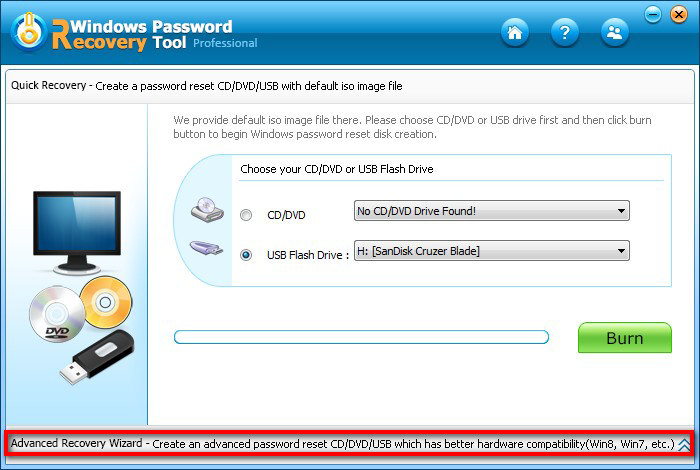
2. Now select the Windows version of the target computer, and choose CD/DVD or USB flash drive to make boot disk (you can also store bootable data in an *.iso file).
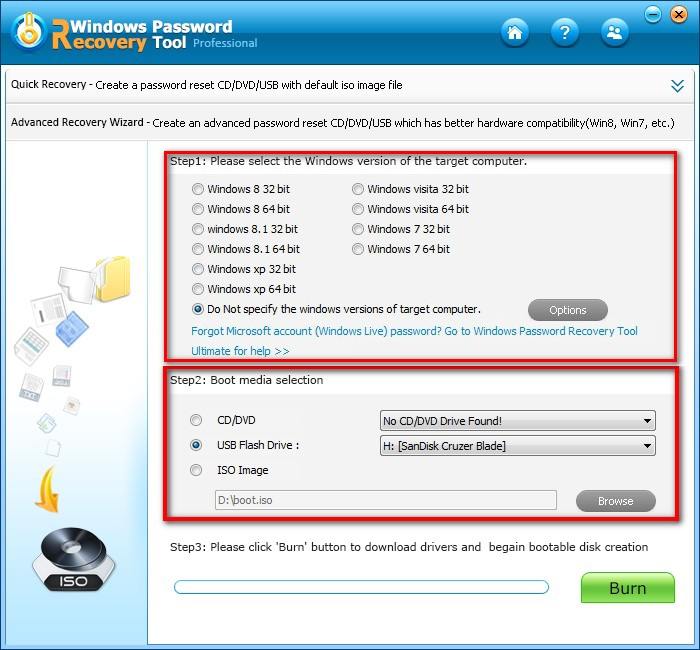
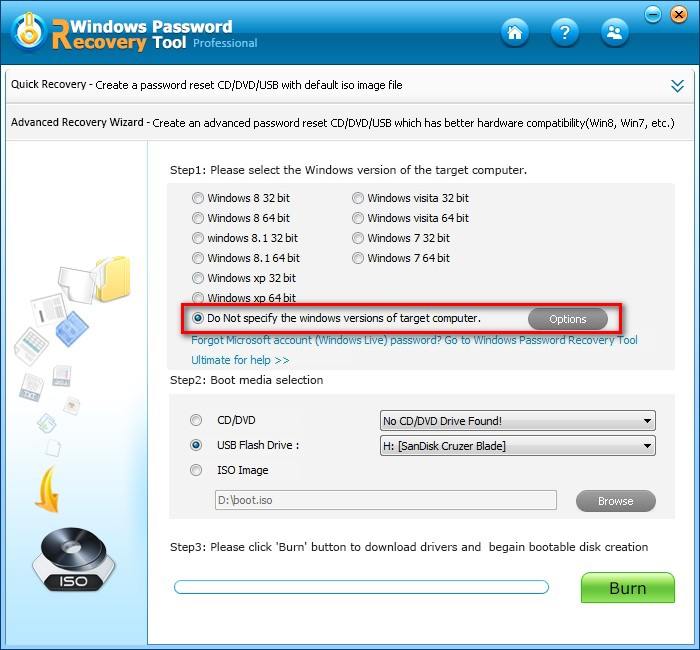
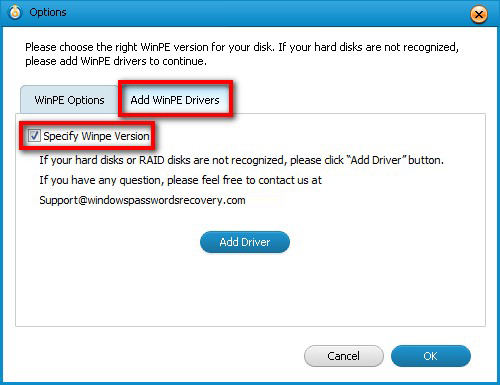
Note 1: You can add WinPE drivers (RAID disks) if your hard disks are not recognized. Click on "Options" next to "Do Not specify the windows versions of the target computer". In the pop-up window, switch to "Add WinPE Drivers", select the "Specify WinPE Version" option to add your driver.
Note 2: If you select boot media as ISO Image, the bootable data will be stored on your local computer (in D:\boot.ios by default). This is very convenient and quick for you to boot a disk next time.
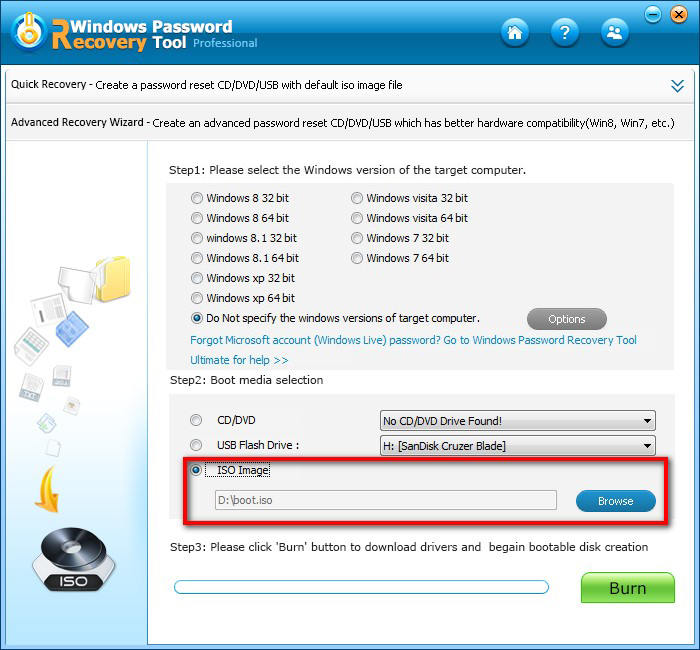
3. Click on "Burn" and then the tool will start to download system drives and you should only wait for a few minutes.
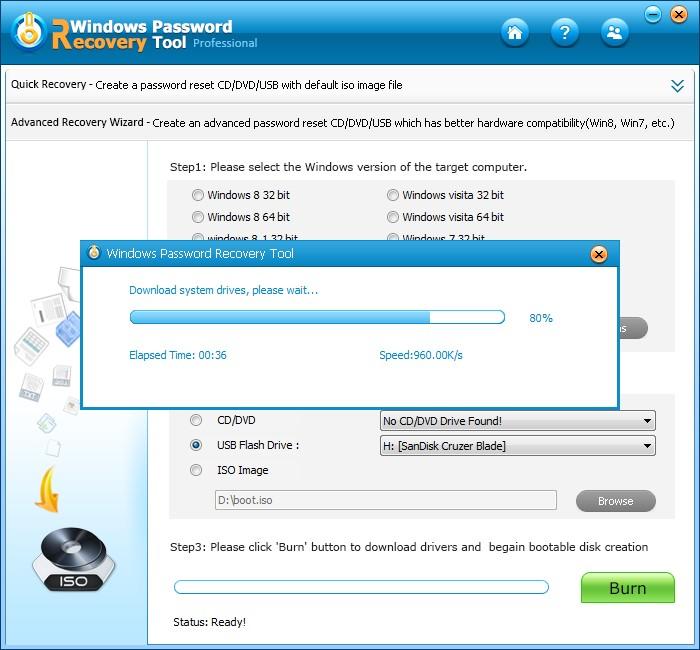
4. After it finishes downloading system drives, click on "Yes" in the pop-up window. It will automatically start to create the password reset disk.
Step 3 .Remove your Windows password:
1 . Insert newly created USB Flash Drive and reboot your computer from USB drive.
NOTE:
If you’re using Windows 7 and older versions or have installed Windows 8 on an existing computer that uses the legacy BIOS system, you can simply set the BIOS to boot from USB drive. For the computer with Windows 8 preinstalled uses UEFI, you should disable UEFI Secure Boot firstly, then access the BIOS in the traditional way.
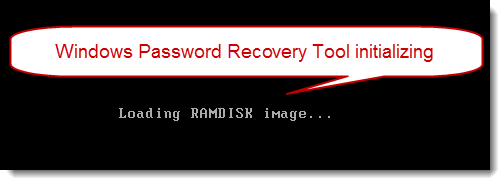
2 . When the CD/DVD or USB disk boots, you'll see Windows Password Recovery Tool Professional is initializing (see screenshot below).
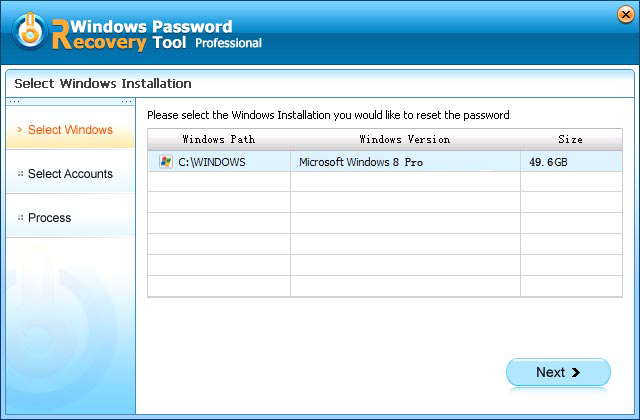
3 . The program starts, select the target Windows OS you want to remove password for, click Next to continue.
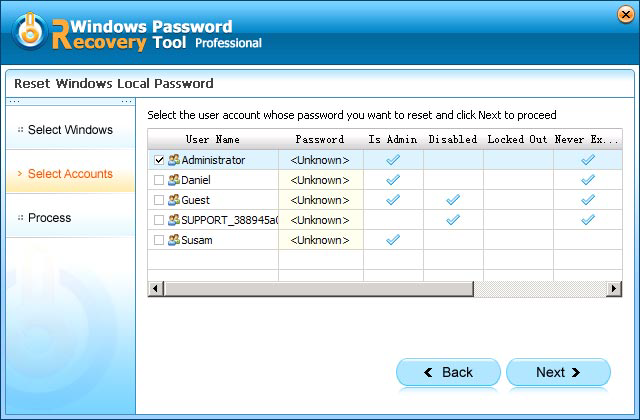
4 . All the user names will be displayed before you, select the user accounts whose password you want to remove and click "Next" button to reset the password.
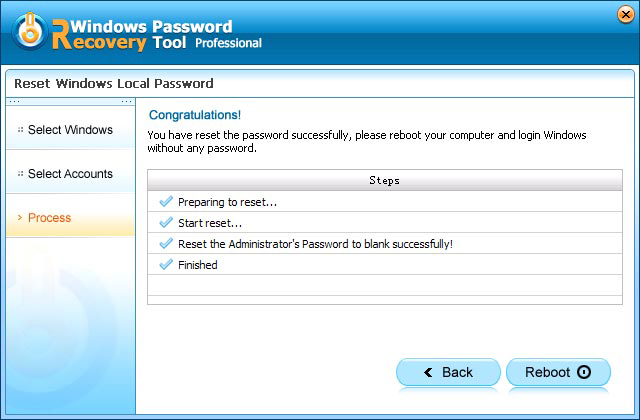
5 . "Success" message is displayed after the user's password has been successfully remove. Click "Reboot" to restart your computer.
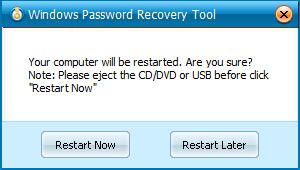
6 . You have changed your forgotten password to a blank one. Remove the Windows Password Recovery Tool Professional bootable USB Flash Drive and click "Reboot" button to reboot the computer. Now you are able to log into your computer without a password.
Sounds Good? Get " Windows Password Recovery Tool Professional " Now!
If you have any questions about this program, please contact us, We provide lifelong technical support and upgrade service.